Free QR code generator
For links, Wi-Fi, phone, email or text. Add your logo, pick your colours and download it as PNG or SVG for print.
- Never expires
- No sign-up
- No watermark
- PNG and SVG
Fill in the details and your QR code will appear here.
Scan it with your phone camera to test before you print.
The QR code is made in your browser. Your data, including your Wi-Fi password, is never sent anywhere.
How to make a free QR code
- 1
Choose what it opens
A website link, Wi-Fi, a phone number, an email or plain text. Fill in the details.
- 2
Customise the design
Change the colours and add your logo. Keep a dark code on a light background.
- 3
Download and test
PNG for screens and social media, SVG for print at any size. Scan it with your phone before printing.
What is a QR code and how does it work
A QR code (Quick Response) is a two-dimensional code made of black and white squares. It stores a piece of text: a link, Wi-Fi details, a phone number.
A phone camera reads it in a second and opens what it contains, with no app. The three large squares in the corners help the camera find it from any angle.
It also has error correction: it still scans if part of it is missing or dirty. That is why you can put a logo in the middle.
Static or dynamic QR code? Why ours never expire
Many “free” QR codes stop working after a few days, when the tool's trial ends. That happens with dynamic QR codes. Here you create static ones.
| Static (this one) | Dynamic | |
|---|---|---|
| Where the data lives | Inside the code itself | On the company's server |
| Does it expire? | Never | When the subscription stops |
| Can it change after printing? | No, you make a new one | Yes |
| Scan statistics | No | Yes |
| Cost | €0 | Usually a monthly subscription |
If your link won't change (website, Instagram, Google reviews, Wi-Fi), a static code is enough and never expires.
Tips so it scans first time
No smaller than 2 × 2 cm
For tables or shop windows go for 3–4 cm. The further away people stand, the bigger it should be.
Dark on light
Black or dark blue on white works everywhere. A light code on a dark background can't be read by every phone.
Leave space around it
The white margin around the code is part of it. Don't place text or images over the edges.
SVG for print
SVG scales without blurring — ideal for posters, stickers and menus. PNG is for screens.
A logo, but small
The logo covers about 1/5 of the code. Bigger can break it.
Test with two phones
One iPhone and one Android, before you print 500 copies.
QR code for a PDF menu: how to do it
The generator makes QR codes for links. For a code to open a PDF, the file first needs its own web address.
- 01
Upload the PDF
To Google Drive, Dropbox or your own website.
- 02
Open up access
Share → "Anyone with the link". Otherwise guests will see "Request access".
- 03
Paste the link here
Choose "Link", paste the address and download the QR code.
- 04
Test it on a phone
On mobile data, not the office Wi-Fi, and from an account that isn't yours.
When prices change, don't upload a new file: in Google Drive use "Manage versions" so the link — and the QR code on your tables — stays the same.
PDF or digital menu?
On a phone
- PDF menu
- Zoom into an A4 page
- Digital menu
- Fits the screen
Languages
- PDF menu
- One file per language
- Digital menu
- 11 languages, one QR
Changing a price
- PDF menu
- New PDF
- Digital menu
- From your phone, instantly
Allergens
- PDF menu
- Key at the end
- Digital menu
- On every dish
| PDF menu | Digital menu | |
|---|---|---|
| On a phone | Zoom into an A4 page | Fits the screen |
| Languages | One file per language | 11 languages, one QR |
| Changing a price | New PDF | From your phone, instantly |
| Allergens | Key at the end | On every dish |
Ideas for your venue
Guest Wi-Fi
A card on the table and nobody asks “what's the password?” again.
Google reviews
A QR on the bill or at the exit, linking straight to the review form.
Instagram and Facebook
In the window or on the take-away bag, so people follow you.
Phone for bookings
On the flyer or business card, for booking in one tap.
For a menu, don't print a QR code that opens a PDF
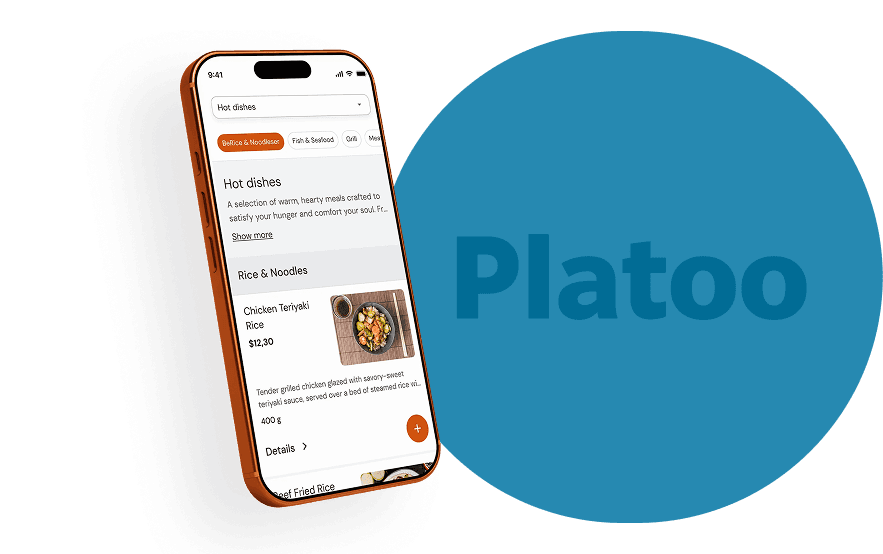
A PDF can't change without a new file, isn't translated and is hard to read on a phone. With Platoo your QR menu code stays the same: change prices and dishes whenever you like, in 11 languages, with allergens on every dish.
QR code questions
How do I make a QR code for a PDF menu?
Upload the PDF to Google Drive or Dropbox, set access to "Anyone with the link", copy the link and paste it into the generator as a "Link". To keep the same QR code when prices change, update the file at the same link (Manage versions in Google Drive).
Is this QR code generator really free?
Yes. This QR code generator is free: create and download as many codes as you like, with no sign-up, no watermark and no limits.
Does the QR code expire?
No. It is static: the data is written inside the code itself and doesn't go through any server. It works as long as the link you entered works.
Can I change the link after printing?
No, a static QR code can't change. If you need a different link, create a new code. For a menu that changes often, use a QR code that opens a digital menu: you change the menu, not the QR code.
How do I make a Wi-Fi QR code?
Choose “Wi-Fi”, enter the network name and password and pick the security (usually WPA). Guests scan it and connect without typing anything.
PNG or SVG?
PNG for screens, email and social media. SVG for print: it scales to any size without blurring.
What size should a printed QR code be?
At least 2 × 2 cm. For tables 3–4 cm, for posters or shop windows even bigger. Leave a white margin around it.
Can I add a logo to the QR code?
Yes. Upload a PNG, JPG or SVG and it goes in the middle. The code is then made with the highest error correction, so it scans normally.
Is it safe? Where does my data go?
Nowhere. The QR code is made inside your browser. Neither the link nor the Wi-Fi password is sent to us or anyone else.
From QR code to QR menu
Create a free digital menu in 11 languages, with one QR code for the whole venue.